Get an Open Waters AIS token
Share your AIS receiver's data and read the live stream. Free, no account, never expires.
Your token and station are tied to this browser. Come back any time to get the same station id or to rename it. Clearing this browser's data starts a new station.
UDP setup — advanced
Your station
Token
Send your receiver's data
Already running AIS-catcher?
Add an Open Waters output to your working receiver. Keep your receiver settings and other feeds.
Web GUI
- Open AIS-catcher's control panel. If you already see Output, continue below. From the web viewer, use Control when available. In older versions, click the toolbox icon at the top left, labeled System and receiver statistics, then scroll to the bottom and click System.
If neither control is available, open your managed-mode dashboard (normally
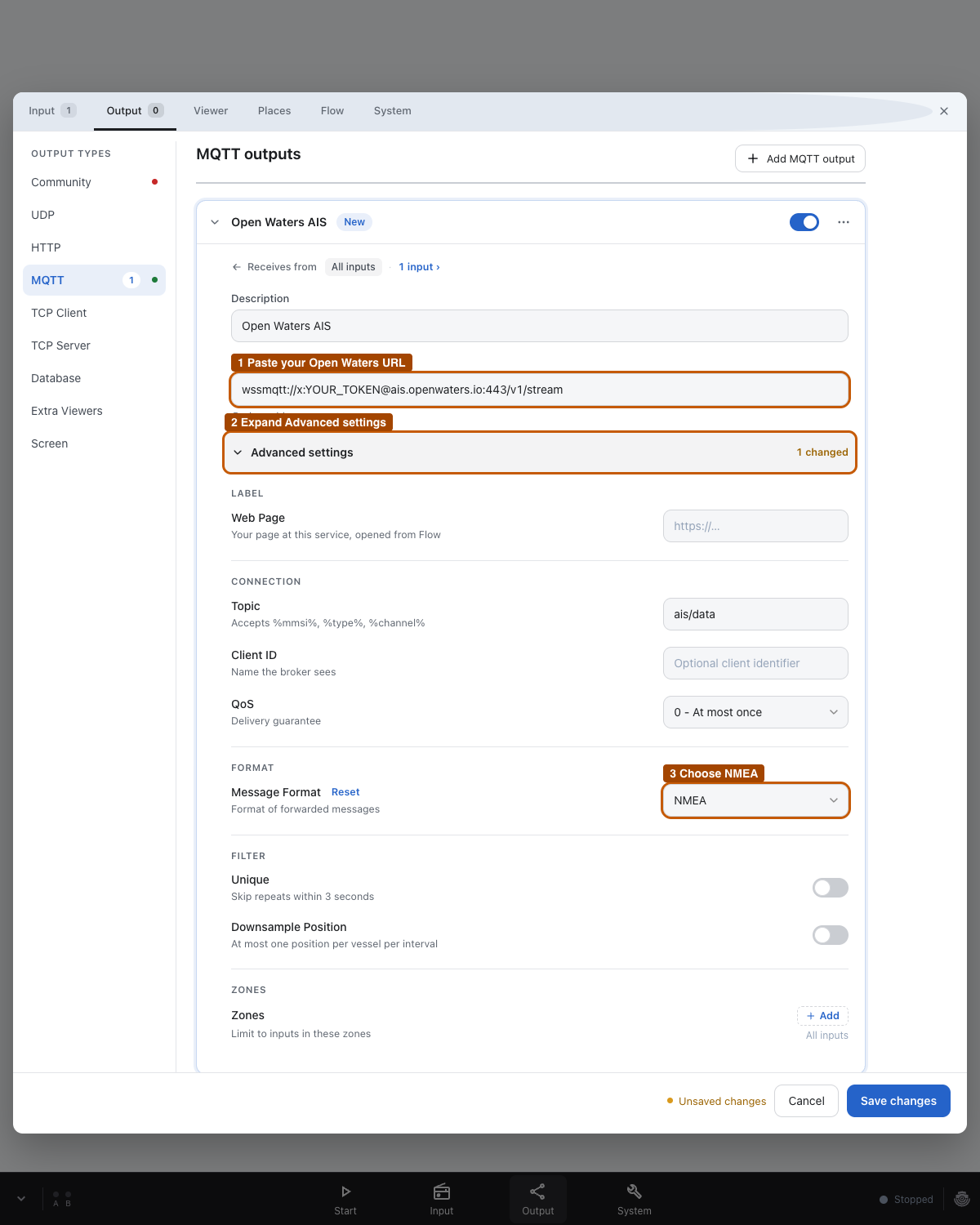
http://localhost:8118on the receiver's computer), or use our Command line instructions for your existing setup. - Choose Output → MQTT → Add (or Add MQTT output) and paste your Open Waters MQTT URL into URL.
This URL contains your private token. Keep it out of messages and screenshots. Copy the entire URL, including
:443. - Open Advanced settings and set Message Format to NMEA. The default JSON format does not work with this output.
- Keep the output Active, save it, and apply the changes or restart the receiver if prompted. Return to the Open Waters token page to check reception.
Show MQTT settings screenshot
Command line
Append the options starting at -Q to your existing startup command, keeping your input settings and other outputs:
Keep :443 and MSGFORMAT NMEA. NMEA_TAG also works for receive timestamps. Save the updated command and restart your existing receiver process.
Or append the HTTP options starting at -H, sending one batch every five seconds:
New installation
Starting with a USB RTL-SDR? Download a config with your token, receiver input, and Open Waters output already filled in. Follow the shore setup guide to install and launch it, then press Start in the dashboard.
Download AIS-catcher configThis file contains your private token. Keep it private. It is for a new RTL-SDR setup; don't replace an existing receiver's config. AIS-catcher's separate community sharing is disabled.
Check reception
Checking for data…
Your receiver must be hearing vessels locally. For AIS-catcher MQTT, check that the Open Waters output is active and Advanced settings → Message Format is NMEA, then save and apply the settings. For HTTP or UDP, check your output destination. Reception appears here when your receiver next hears a vessel.
Status refreshes automatically every minute. You can check again after saving your output.
To read network traffic into AIS-catcher, follow the separate network viewer guide; keep that traffic out of your receiver’s sharing outputs.
Signal K
Install signalk-aiscast from the App Store. It creates its own token; nothing to paste.
docker-shipfeeder
Update to the latest image and enable OPENWATERS_SHAREDATA=true. It creates and saves its own token for MQTT. You can instead set OPENWATERS_FEEDER_KEYto the token above to reuse this station. Follow the shipfeeder setup guide for the Compose settings and UDP fallback behavior.
UDP
For a NMEA forwarder using UDP: host udp.ais.openwaters.io, port 10110, no token. The station appears as an anonymous udp:… unless you bound this address above.
Read the stream
Any aisstream.io client: hostname ais.openwaters.io, API key = your token. Or from a shell:
Personal tokens get 2 concurrent streams, 50 messages a second each, and 400 square degrees of subscribed area. Contribute data and the same token becomes a contributor on its own: 5 streams, 200 messages a second, any area, and the raw NMEA feed. Tiers and limits. Need more than that? hello@openwaters.io.